Preview links for signature requests
Share a view-only link to your signature document with people who need to review it but aren't signing. Stakeholders, legal teams, and additional client contacts can see exactly what the signer sees, without signing from the preview.
Portant generates a preview link for every signature request. The link lets anyone view the document. Signing happens through a separate signing link, which Portant emails to the addresses on the request.
What you'll learn
- What a preview link is and where to find it
- How to enable preview links on a workflow
- How signing works when you share the preview link
What is the preview link?
The preview link shows the document exactly as it will appear to the signer.
The link:
- Is saved on the Outputs tab of your workflow.
- Is saved on the Signing Link property of the associated HubSpot object (when you're using the HubSpot integration).
- Lets you (and anyone you share it with) review the full document before or after sending it for signature.
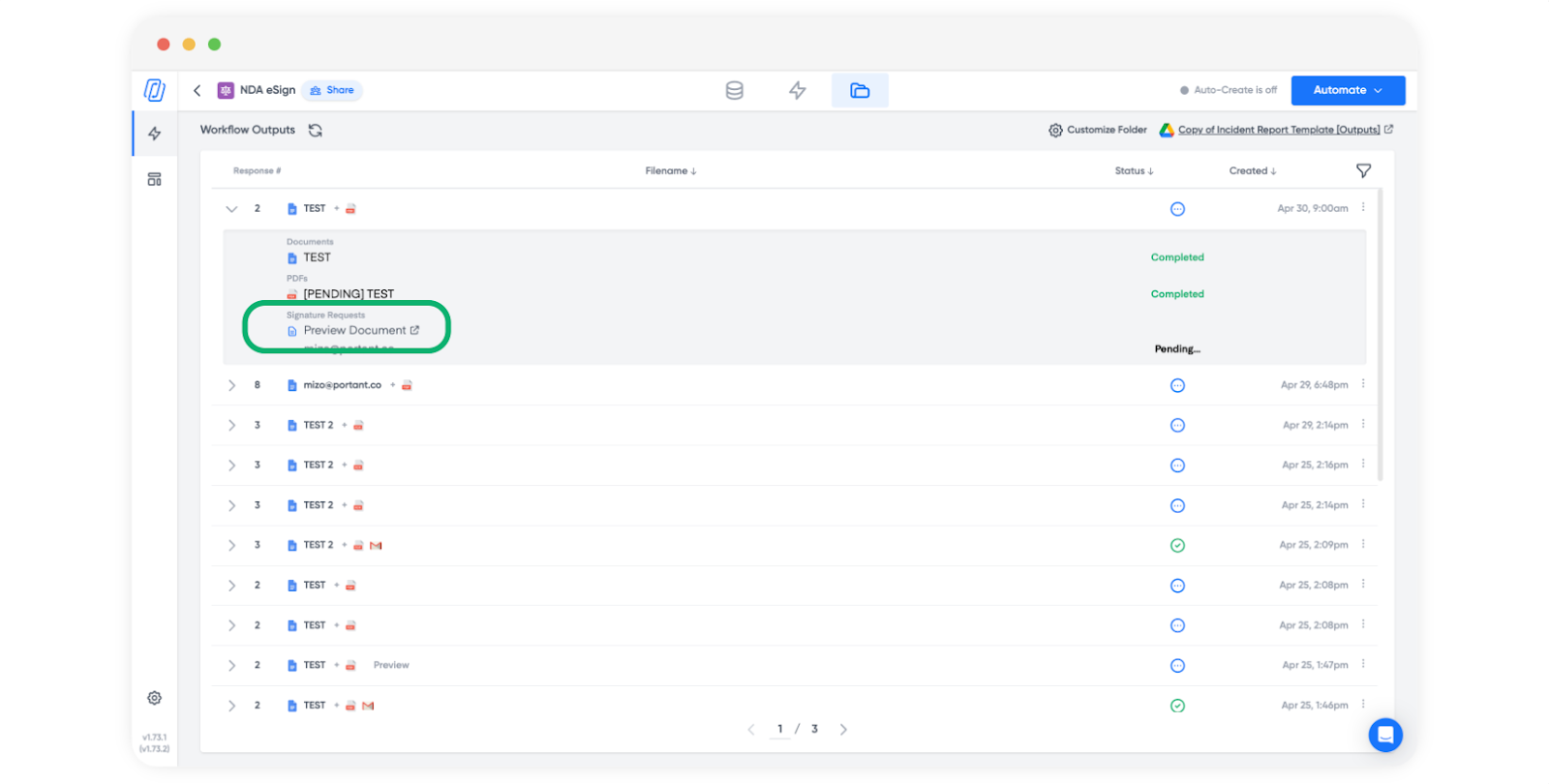
The preview link is for viewing only. Even if a signer opens it, they cannot complete the signature directly from the preview link.
How to enable the preview link
Open the signature request block in your workflow. On the right hand side, find the Generate Preview toggle and turn it on.
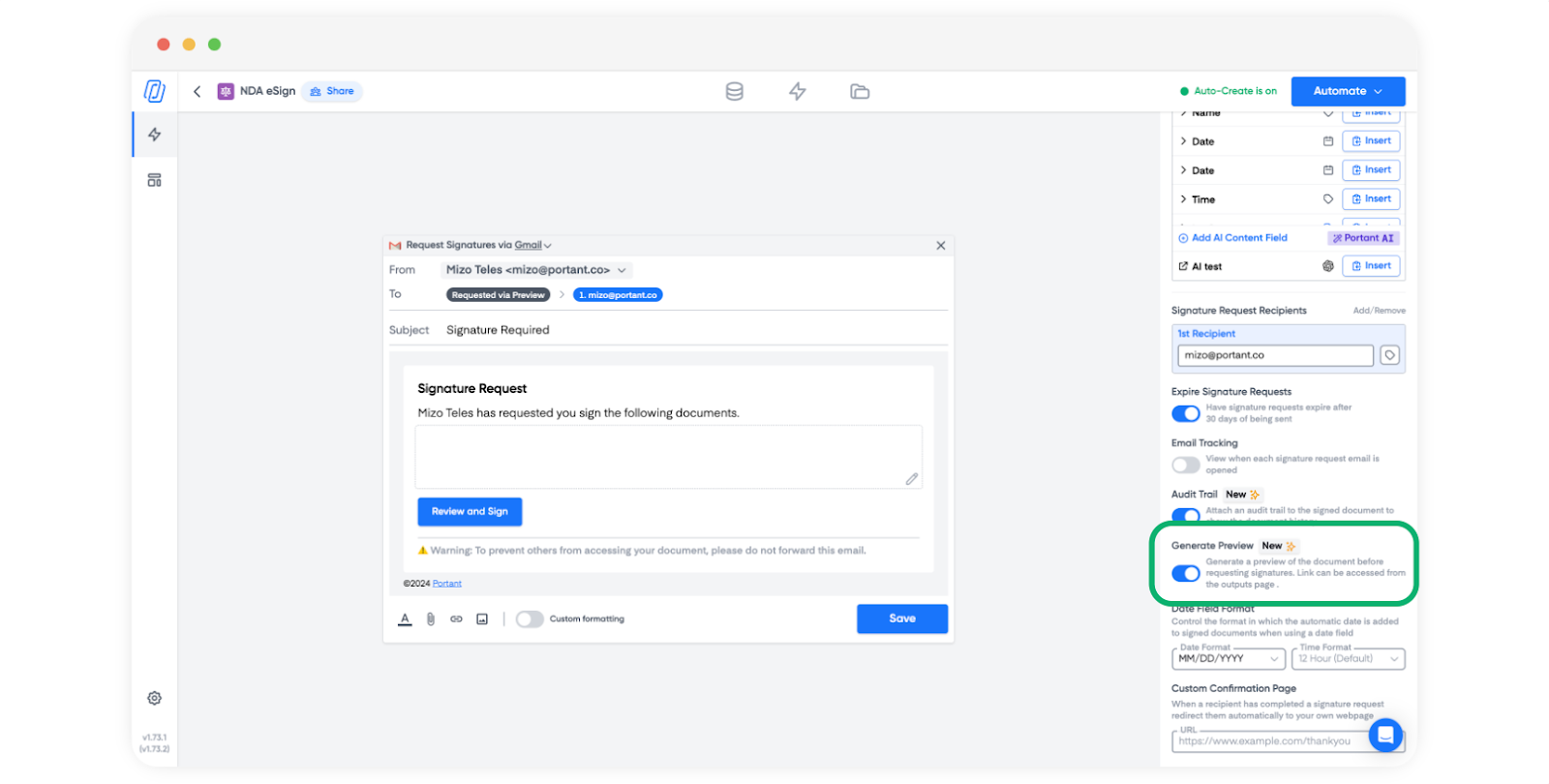
Once the workflow runs, the preview link appears on the Outputs tab next to the signed document, and on the HubSpot deal's Signing Link property if you're connected to HubSpot.
If you haven't set up a signature request workflow yet, see Get started with eSignatures.
How signing works with a preview link
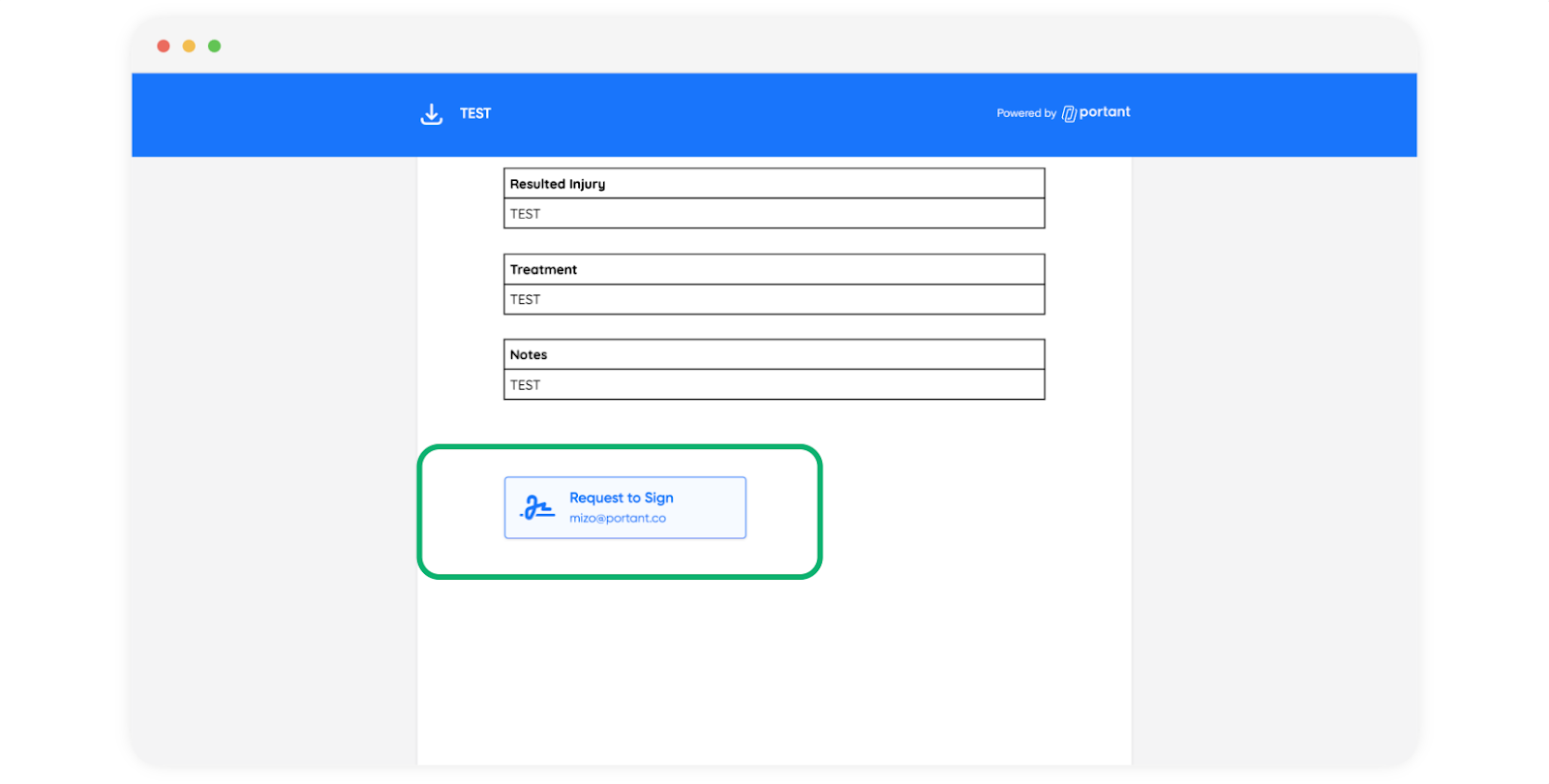
The preview link cannot be used to sign. When a signer on the request opens the preview link and clicks to sign:
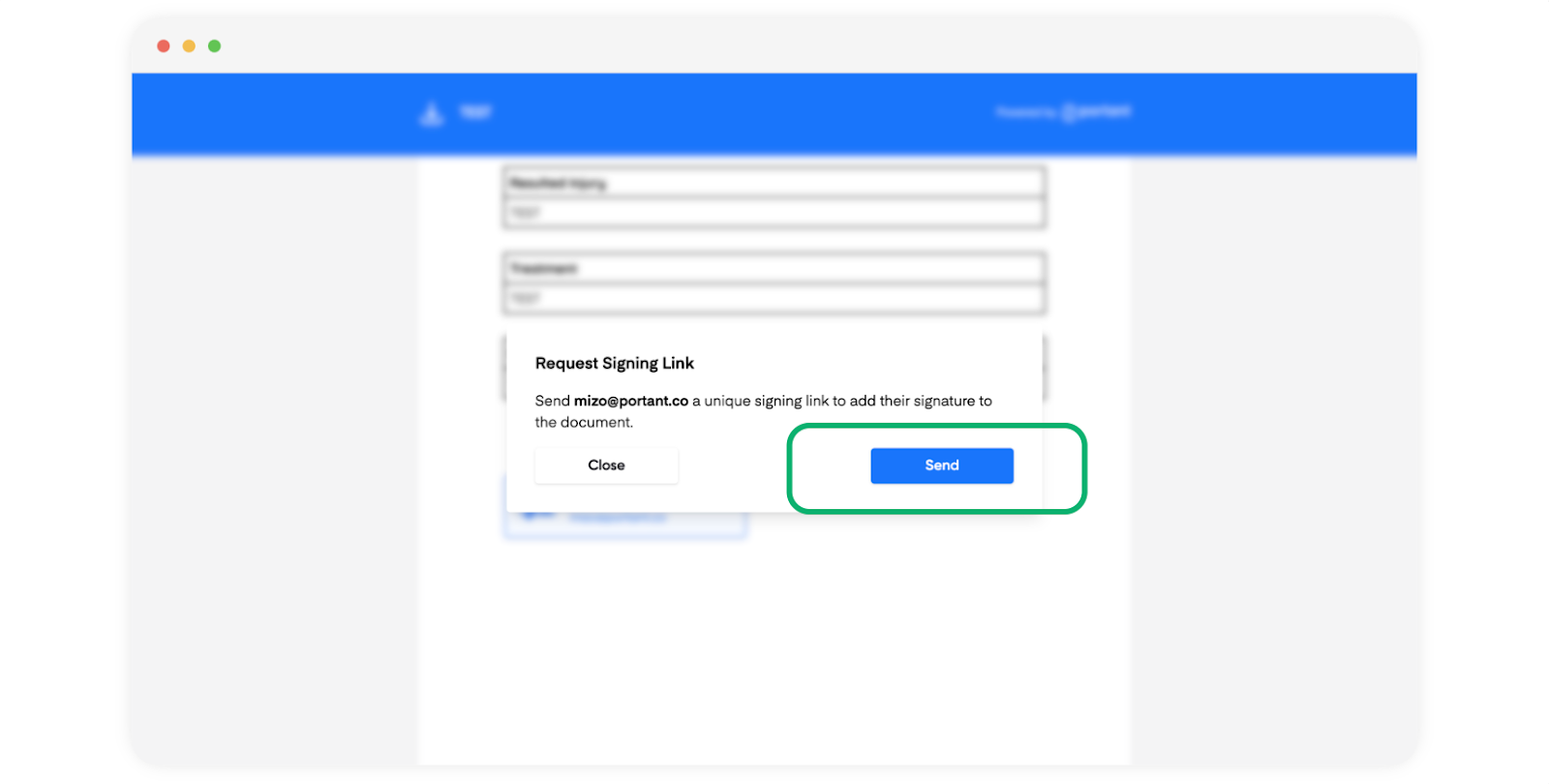
- They request a signing link from inside the preview.
- Portant emails the signing link to the email address on the request.
- The signer opens that emailed link to complete the signature.
This means:
- The document can be reviewed and shared internally.
- Signing links go only to the email addresses on the request.
Portant does not verify who opens or signs a document. Anyone with a signing link can sign, so if a recipient forwards the signature request email, the person who receives it can sign. Keep sensitive requests to recipients you trust.
The preview clearly shows where signatures and other fillable fields are required, so reviewers know what they're looking at.