Request signatures without a source
Send a document for signature without setting up a source. This is the simplest way to get a signable document out the door when the content doesn't change between recipients.
If you do need to personalize the document with data (different names, prices, line items), use a workflow with a source instead. See Signature requests.
What you'll do
- Create a workflow from a template
- Customize the template
- Add signature and other fillable fields
- Publish the document and share the signing link
- See the signed document in Outputs
1. Create a workflow from a template
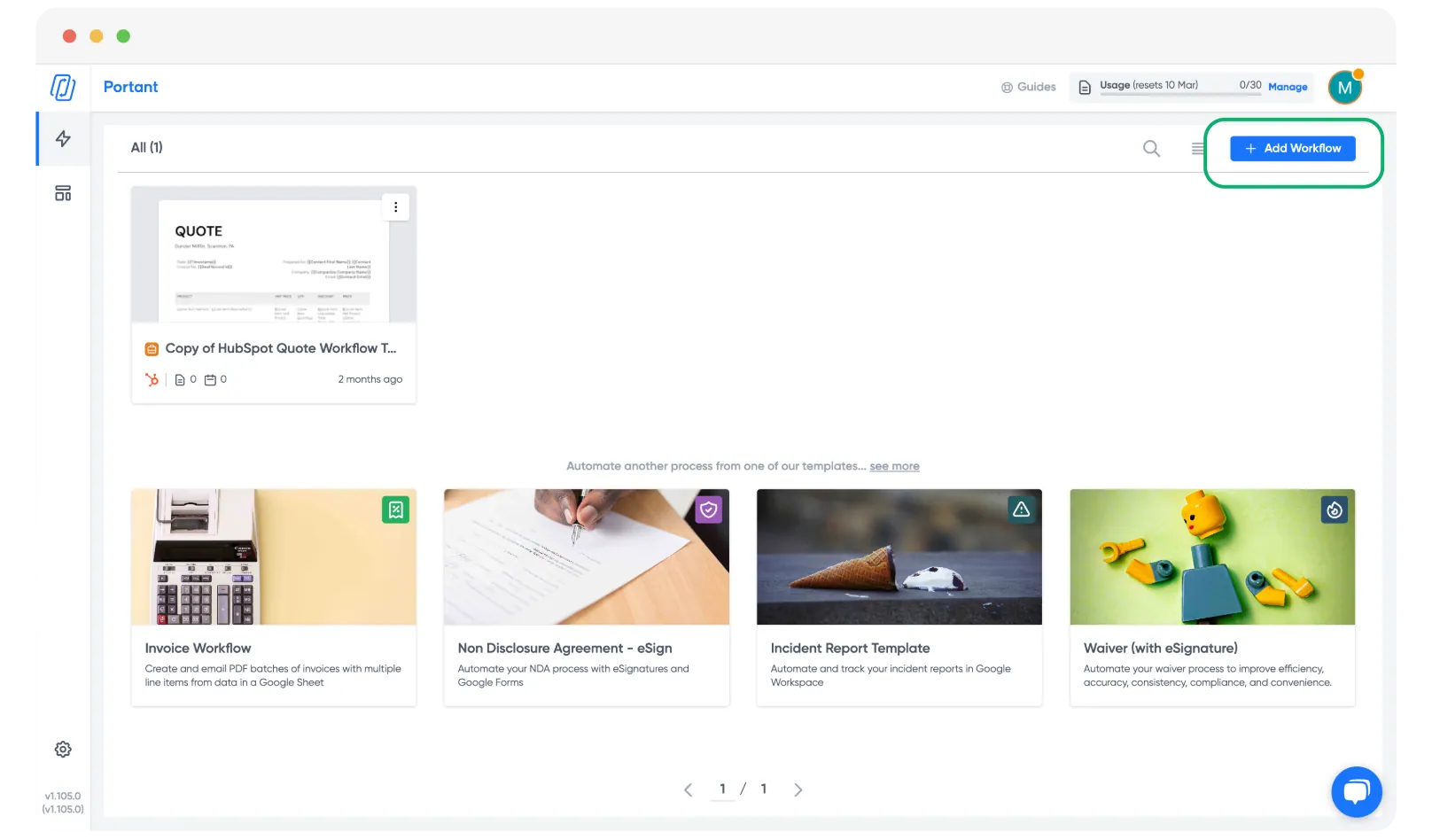
In the Portant app, click + Add Workflow.
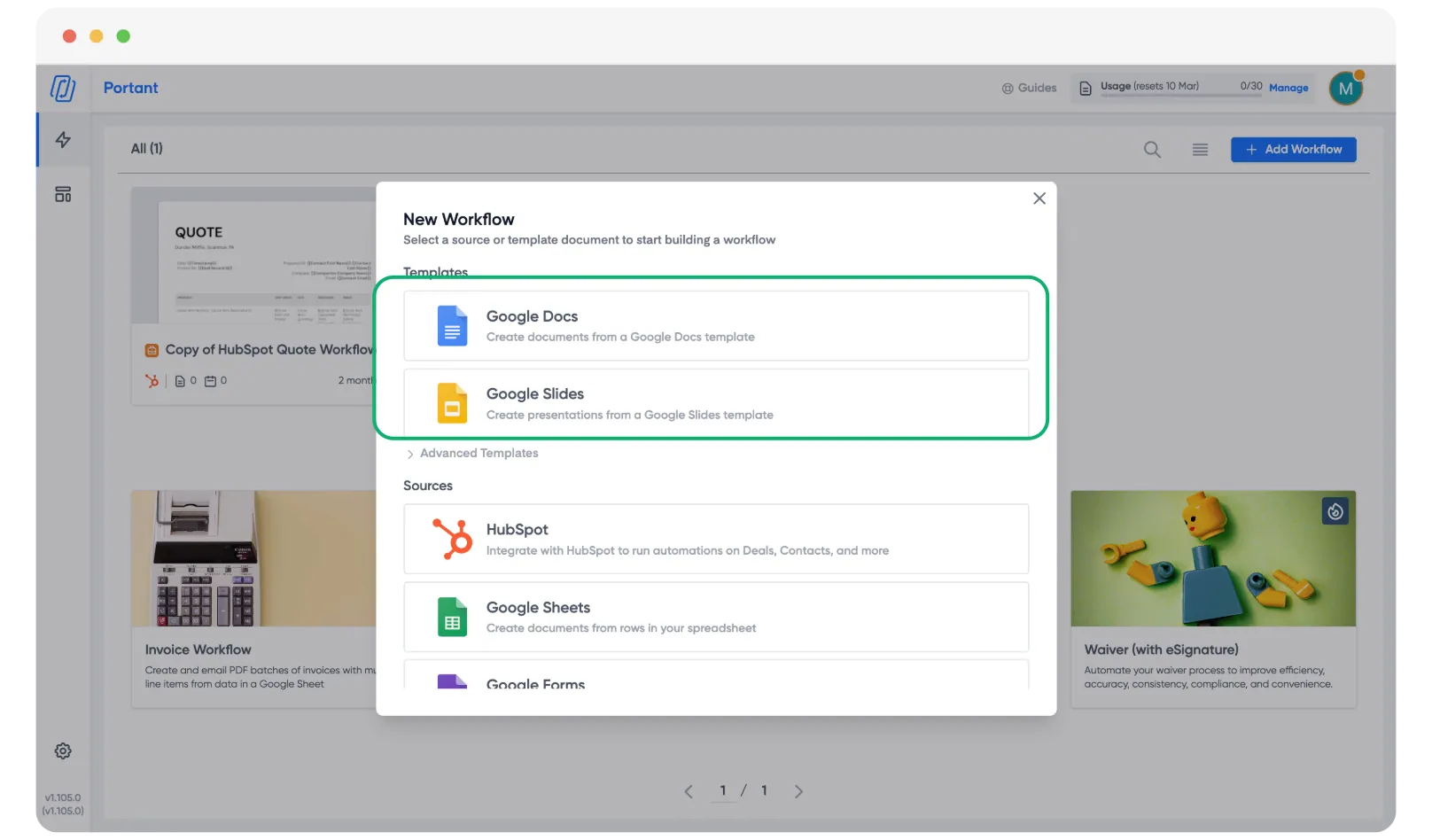
Pick a template type. Google Docs and Google Slides both work.
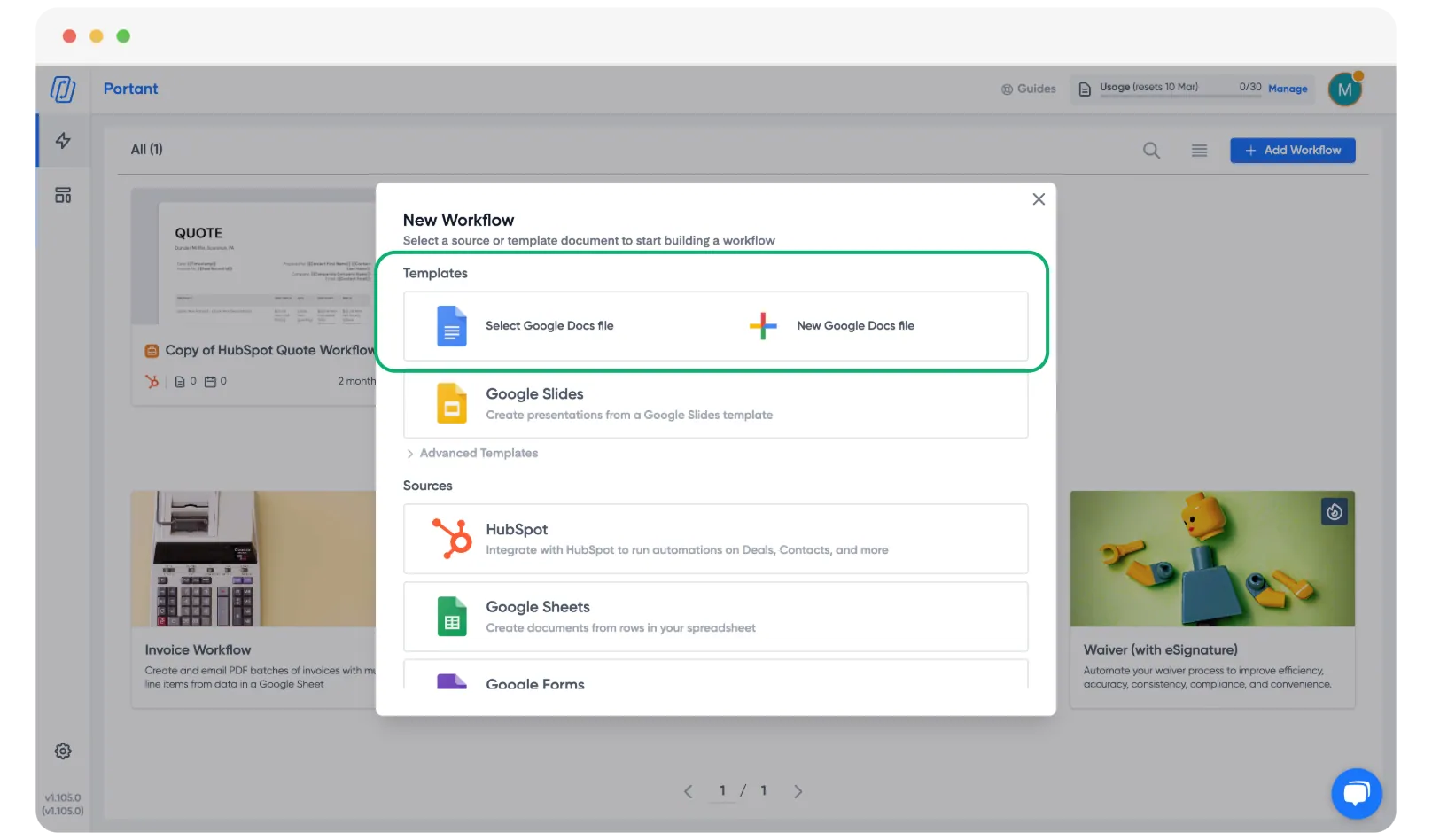
Pick an existing template from your Google Drive, or create one from scratch.
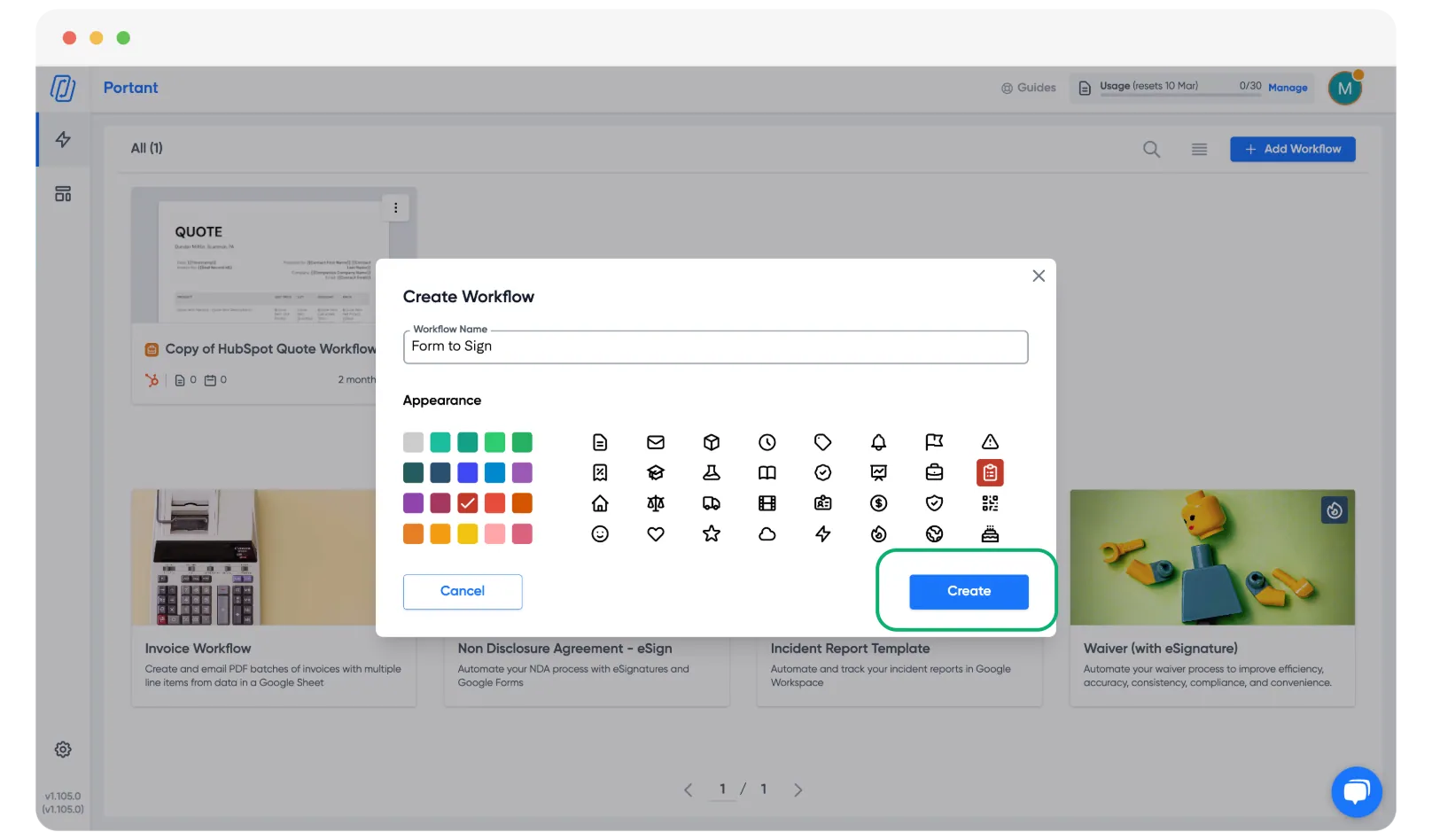
Give the workflow a title, color, and icon so it's easy to find later.
2. Customize the template
Use the formatting tools to set up the document the way you want it.
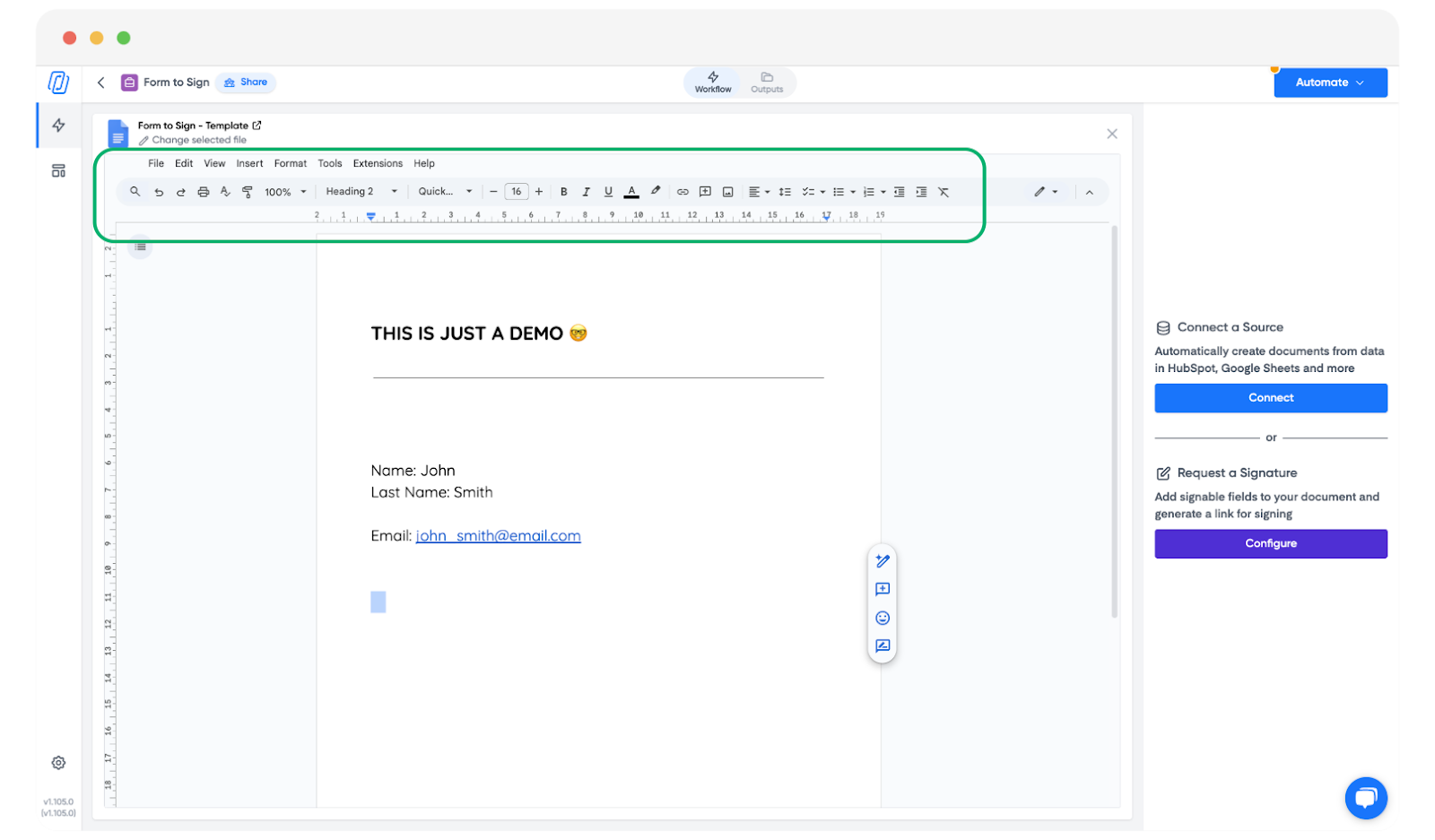
When you're done, click Configure to add a signature request.
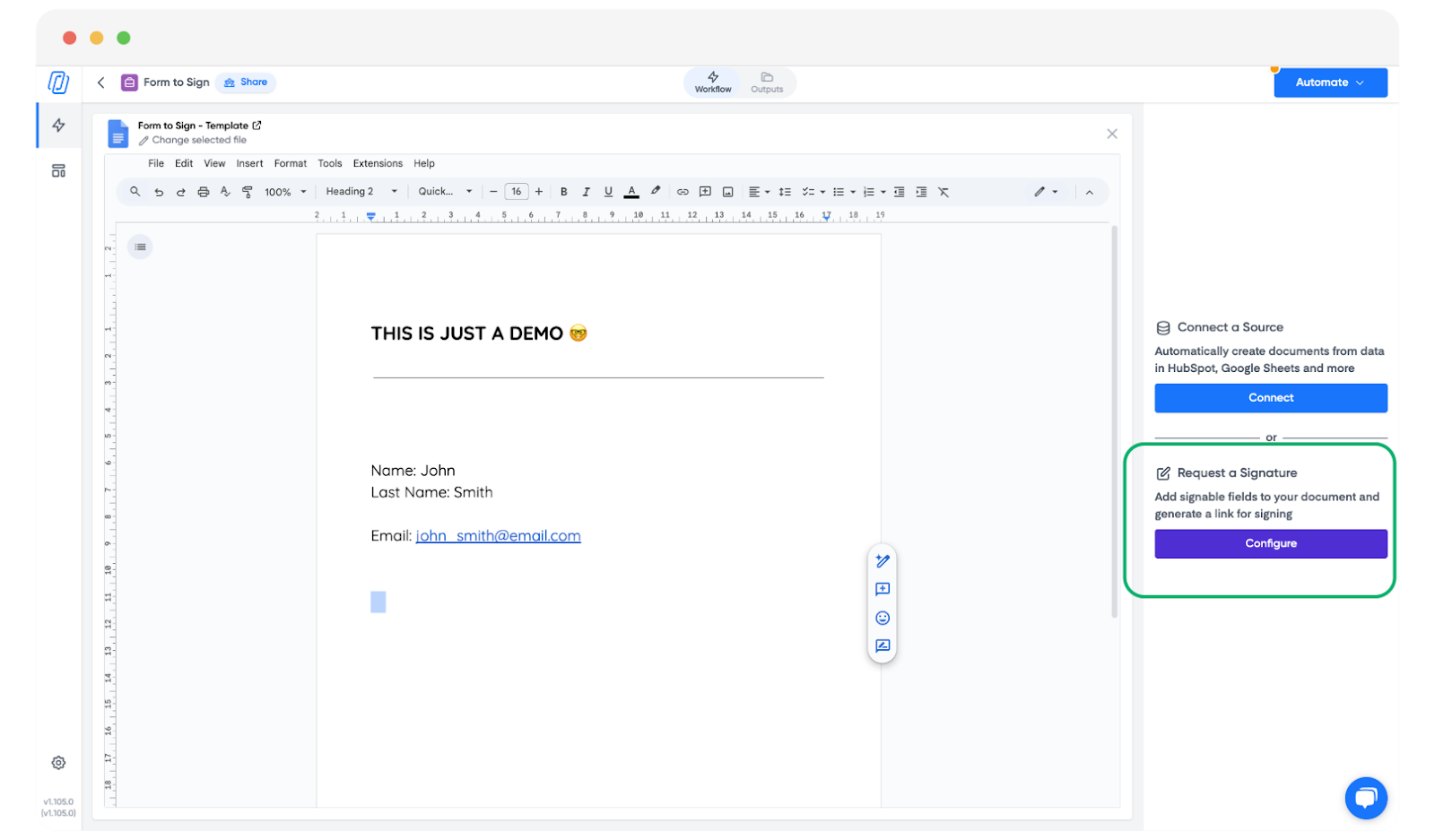
3. Add signature and fillable fields
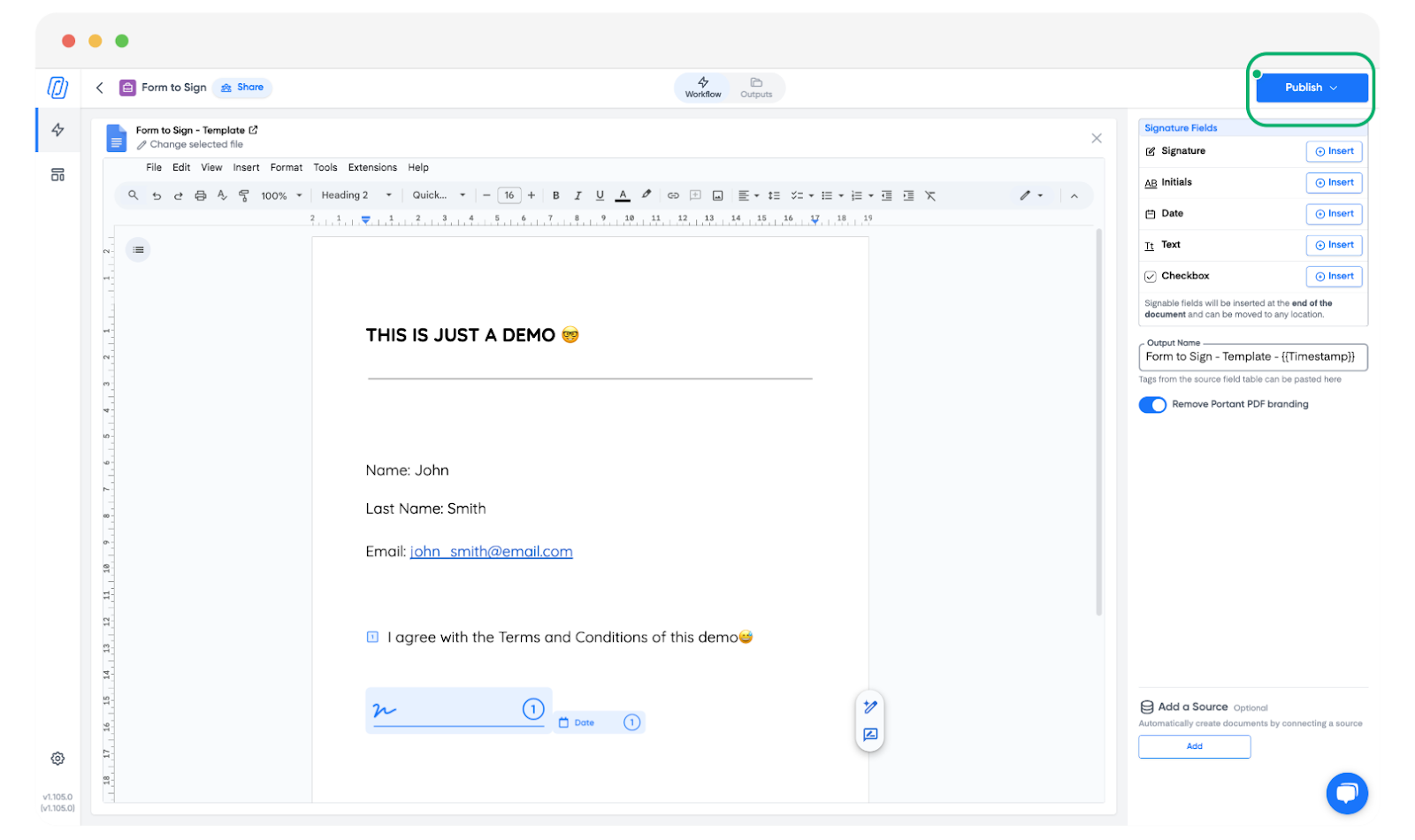
The right side of the screen shows the placeholders you can drop into the document: signature, text field, checkbox, date field, initials. Click Insert to place each one wherever you need it.
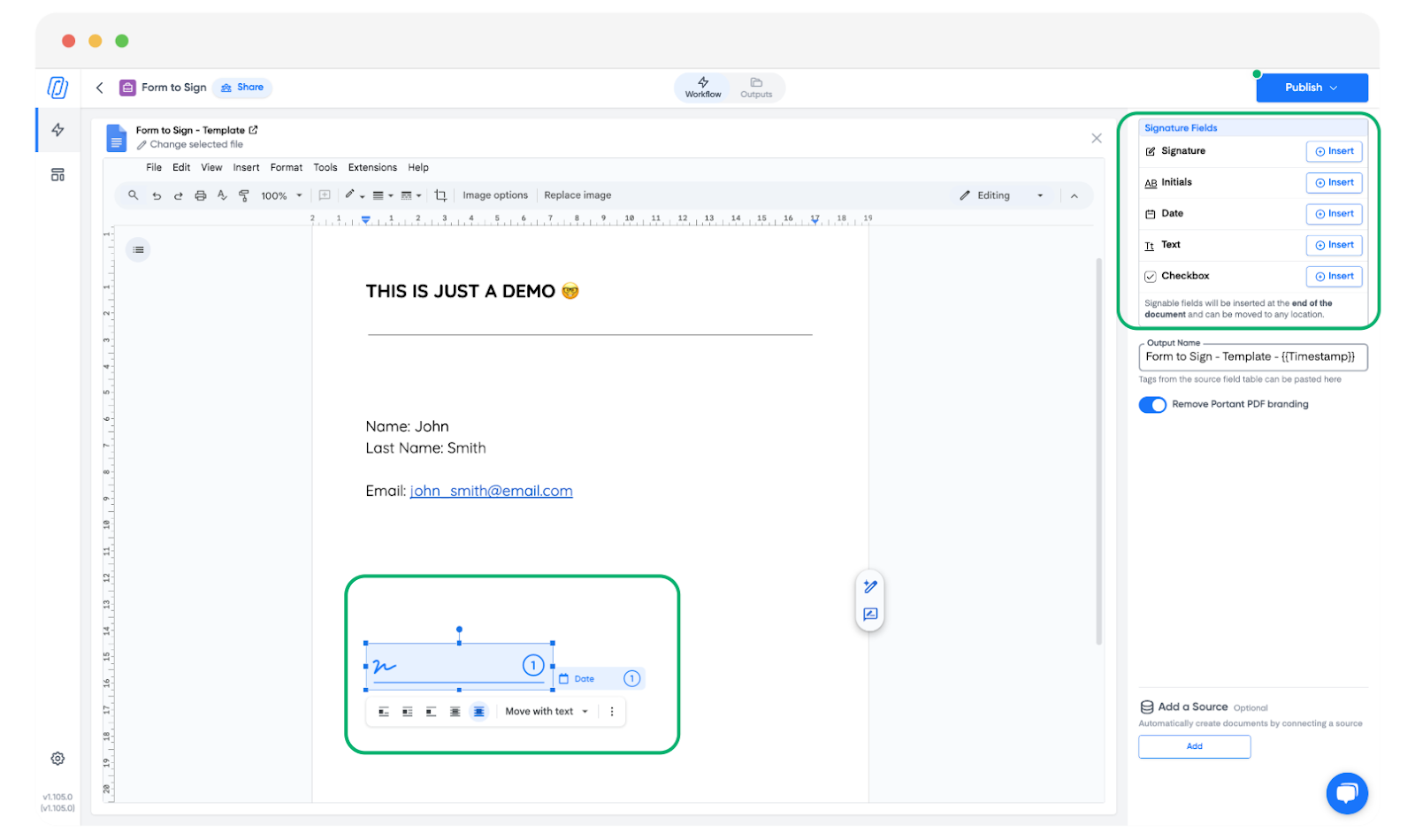
Note: You can also use plain text boxes if you want recipients to fill in extra information that isn't tied to a placeholder.
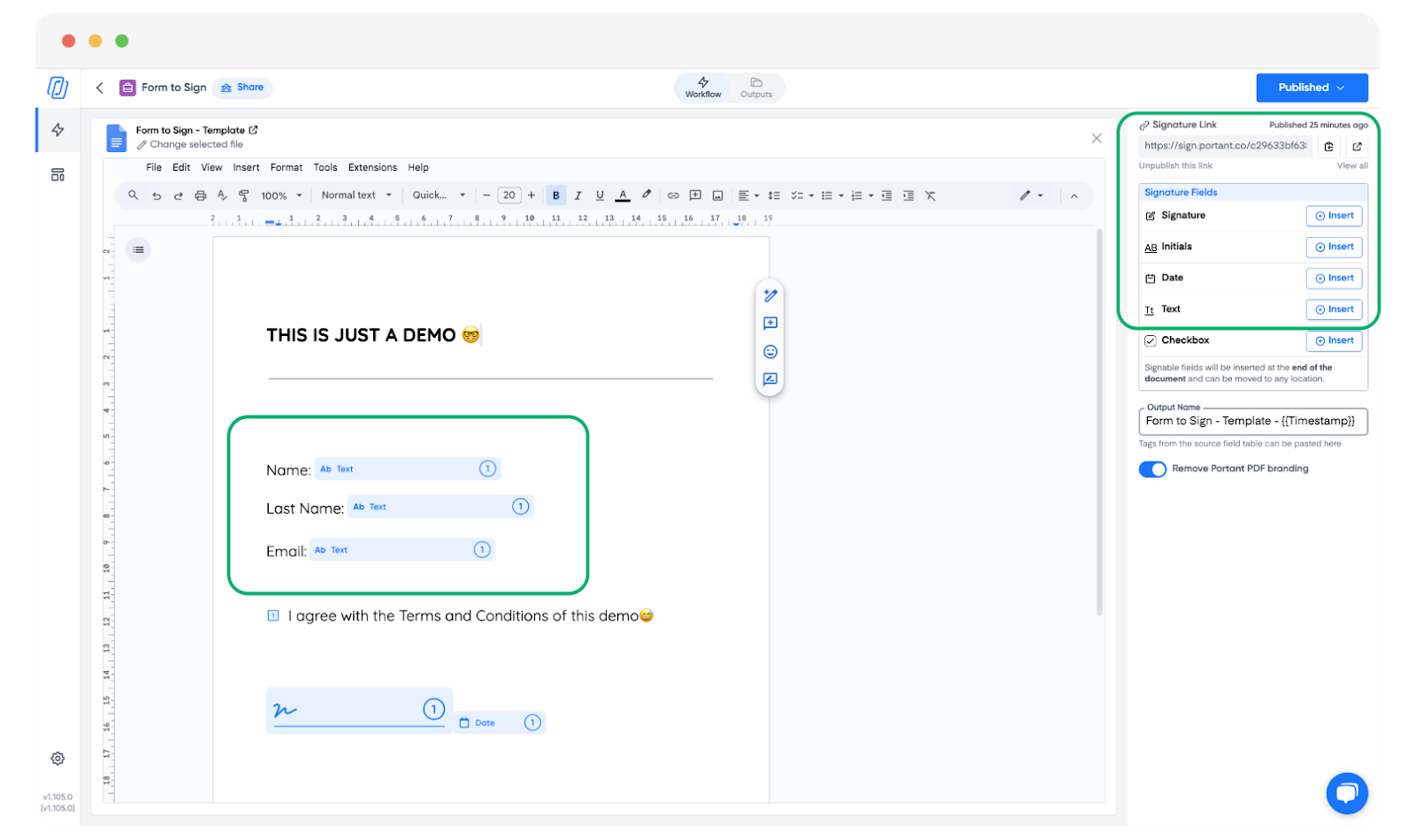
4. Publish and share the signing link
Once the document is ready, click Publish.
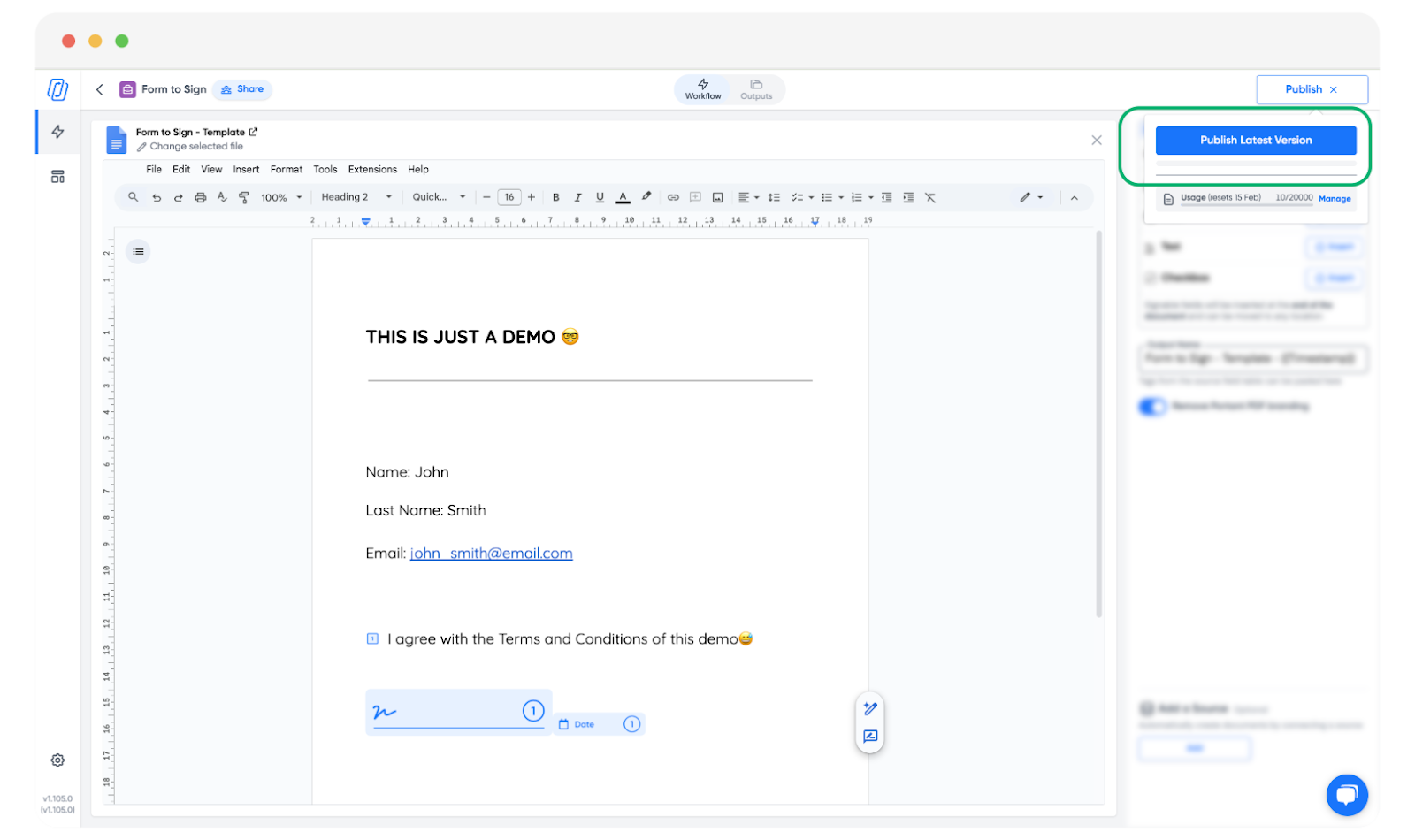
Pick Publish Latest Version.
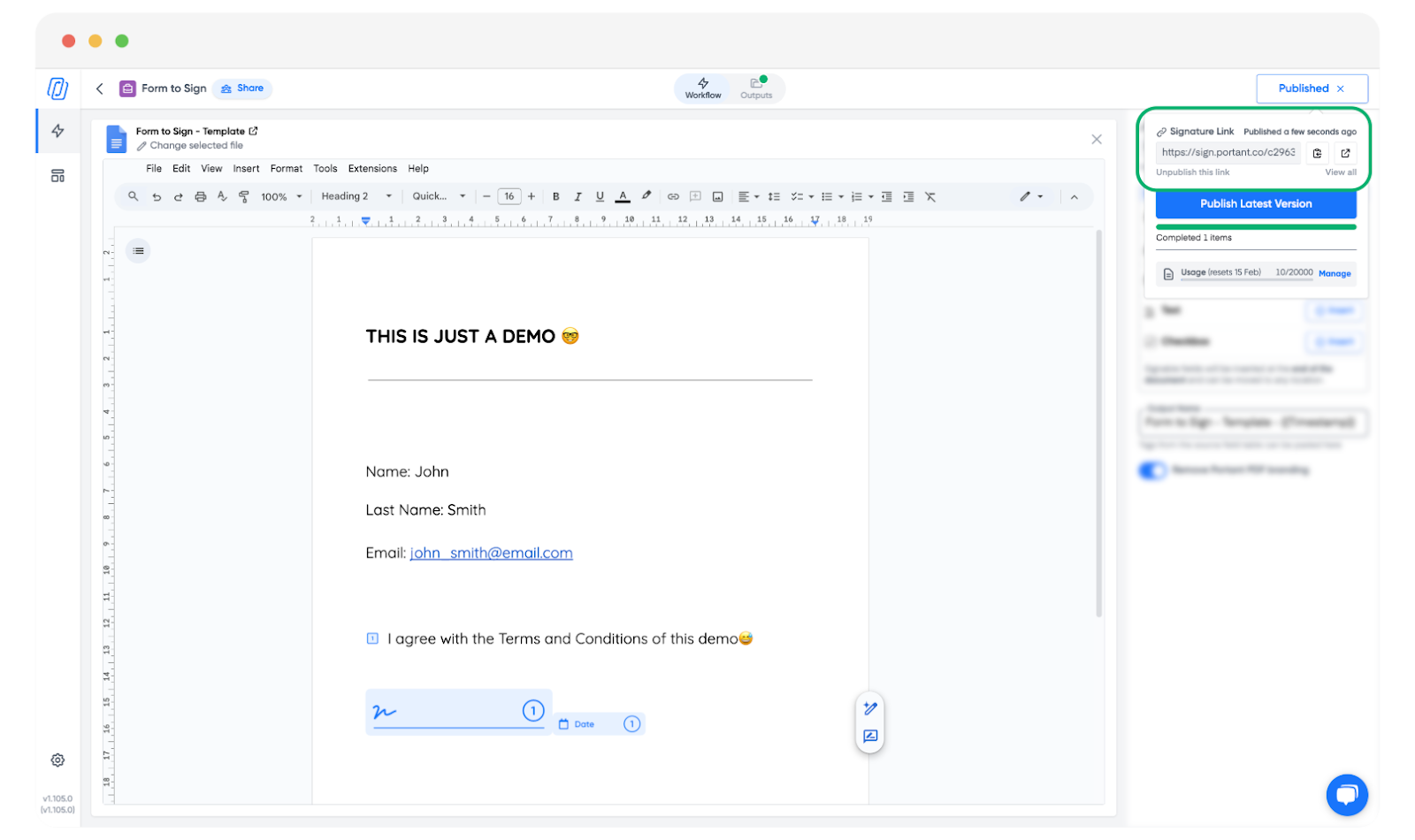
You can then Copy to Clipboard to grab the signing link, or Open in a New Tab to review the document yourself first.
Note: Anyone who has the link can open and sign the document, including someone it was forwarded to. Portant does not verify who the signer is, even when they enter a name or email. Share the link only with people you trust. If you need a specific person to sign, send a signature request to that person from a workflow instead. See Signature requests.
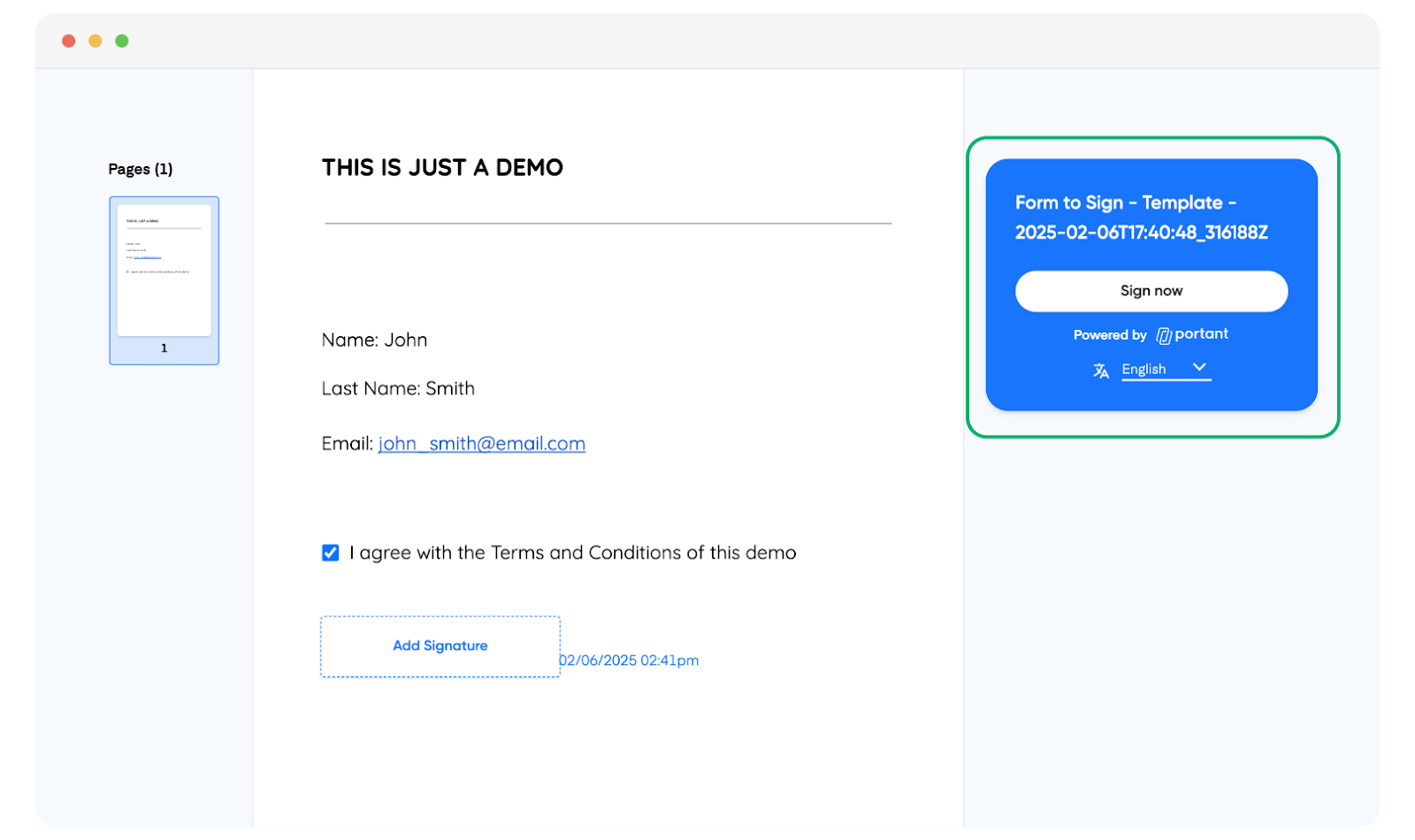
When the recipient opens the link, they click Sign Now to start signing.
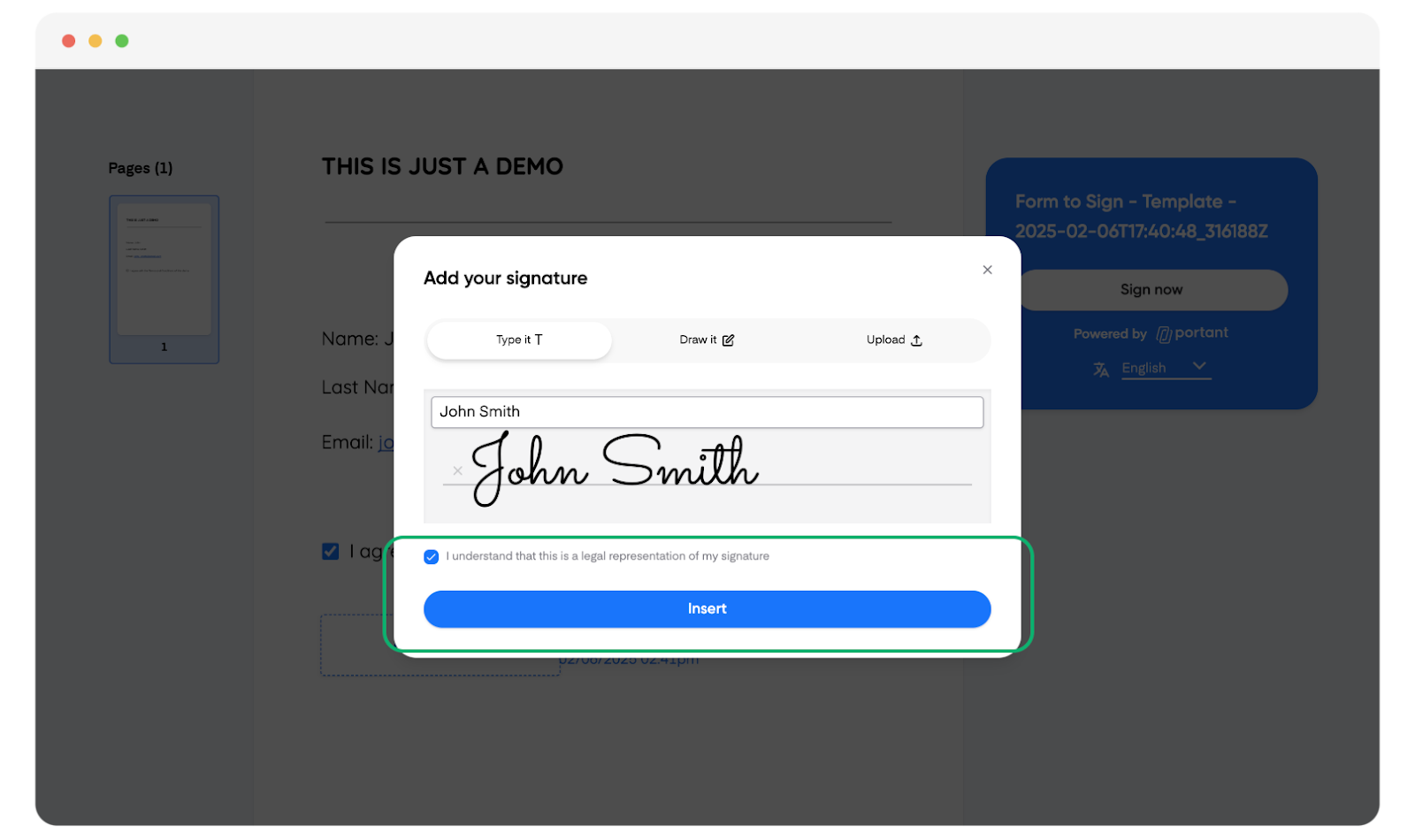
After signing, they tick the box confirming "I understand that this is a legal representation of my signature", then click Insert to apply it.
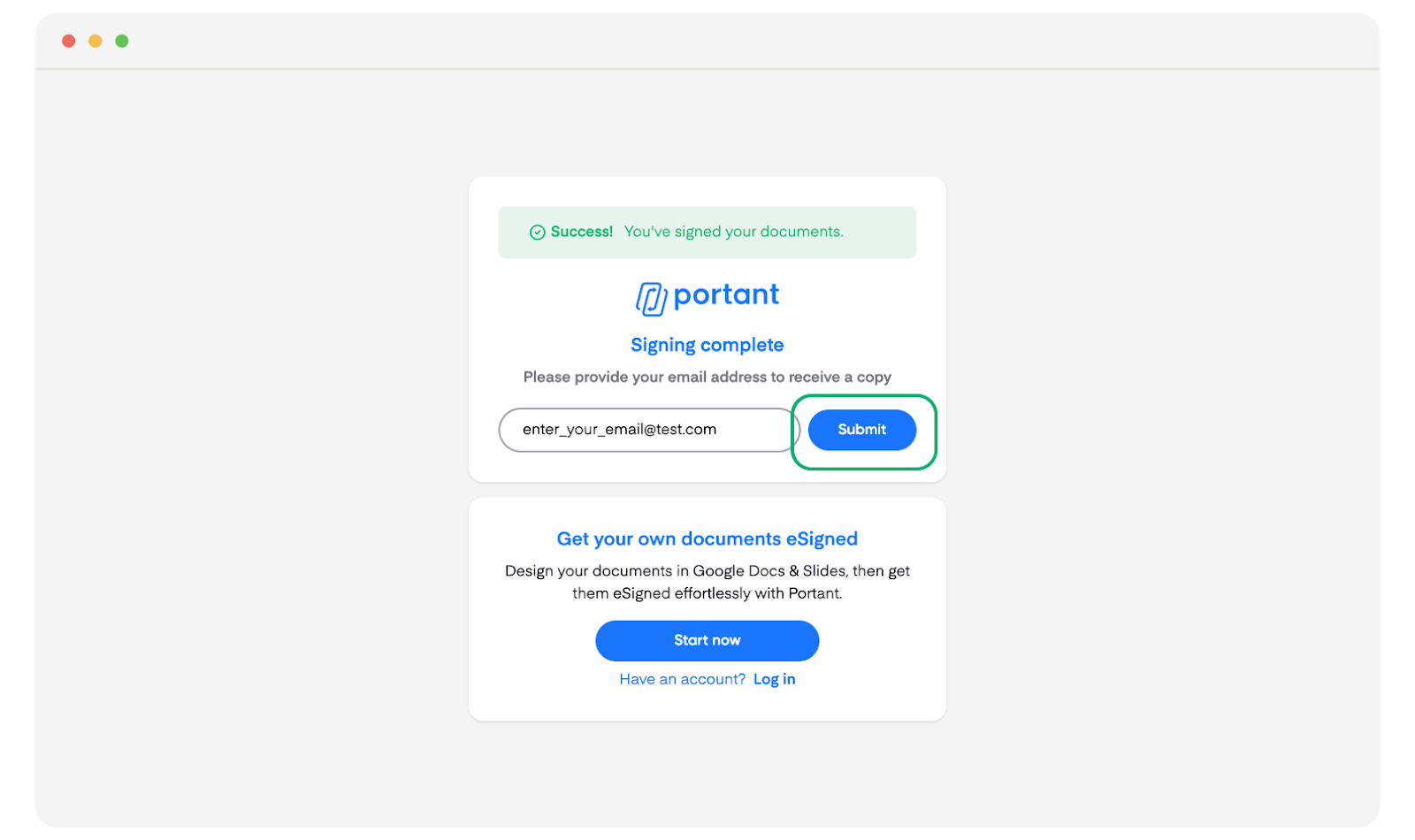
To get a copy of the signed document, the signer enters their email and clicks Submit.
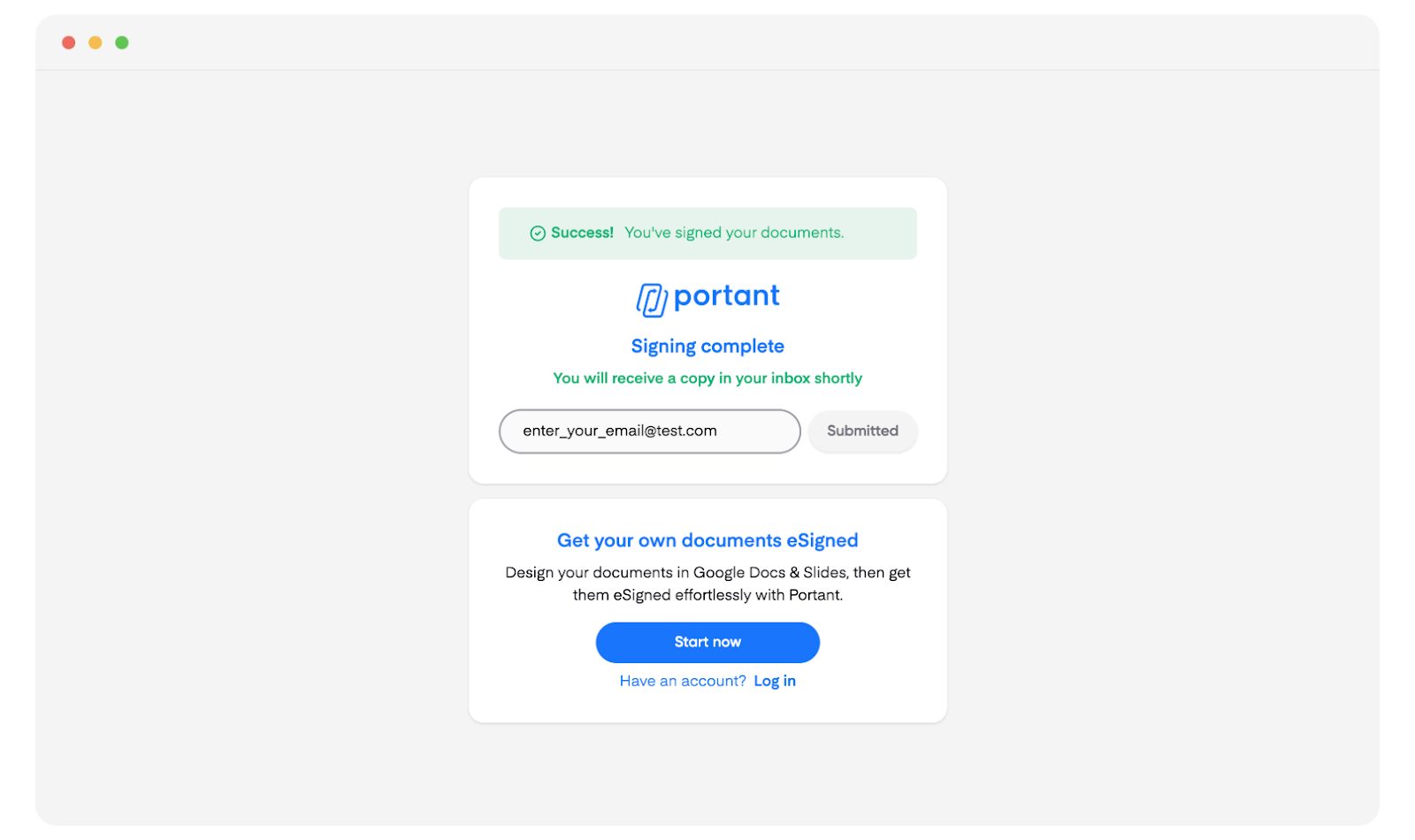
A confirmation page appears once the document is submitted.
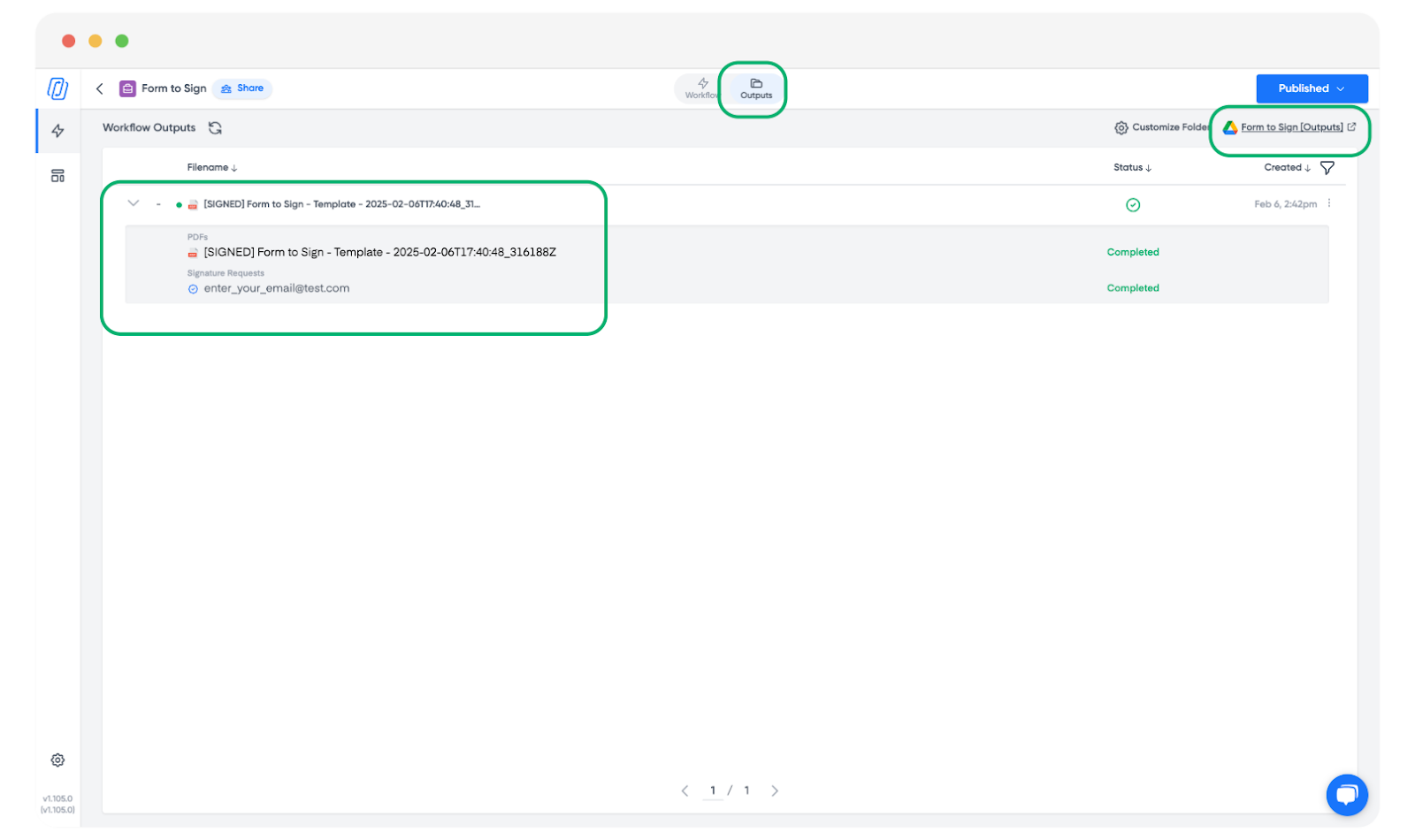
5. See the signed document in Outputs
The signed document is saved to the Outputs tab in Portant and to your output folder. When you turn on signature receipts, the signer also gets a copy of the signed PDF.
On paid plans (Pro, Team and Enterprise), you can add an audit trail page to the signed PDF. Turn on the Audit trail toggle before you share the link. It cannot be added to a document that is already signed. The audit trail page lists each time the document was opened and signed, with the date and time, IP address, approximate location and device, plus the name and email the signer entered. Free plans do not include the audit trail. See Audit trail.
Anyone can check whether a signed PDF is an unchanged Portant document at sign.portant.co. This check does not show who signed, when, or from where.
Note: Portant provides simple electronic signatures (SES). In many countries, an electronic signature cannot be refused legal effect only because it is electronic. Some documents are excluded or have their own signing and witnessing rules. For example, in the US the E-SIGN Act (15 U.S.C. 7003) excludes wills, family law matters and court documents. Portant does not provide an E-SIGN consumer consent and disclosure flow, so where US consumer law applies, you need to give those disclosures and get consent yourself. Check with a lawyer before you use eSignatures for regulated or high-value documents.
Related
- Manual PDF upload: upload a finished PDF and send it for signature.
- Multiple signers: send one document to up to four signers from a workflow (Pro, Team and Enterprise plans).
- Request info on signing: collect text, initials, or checkboxes alongside the signature.
- Compliance: electronic signature laws in the countries and regions we cover.