Seats and users
A seat is a person who can sign in to Portant and use it. Team plans are sold by seat, and the document allowance is pooled across the whole team rather than divided per seat. See Documents per month.
Who needs a seat
Someone needs a seat if they:
- Sign in to Portant to build, edit or run workflows.
- Approve documents as part of a review step.
- Need to see workflow and document status on a HubSpot record, including through the Portant app cards.
Someone does not need a seat simply because a workflow ran on a record they touched. If a colleague moves a deal to a stage that triggers a HubSpot workflow, and that workflow runs a Portant action, the automation runs under the connected account rather than theirs.
The distinction that matters in practice is visibility. A rep who only changes a deal stage and never needs to know what Portant did with it does not need a seat. A rep who needs to open the record and see whether the contract generated, or what the signature status is, does.
This one decides what you pay, so if your setup does not map cleanly onto the above, ask us before you buy rather than after. We would rather size it correctly with you.
Add or remove seats
The Owner can change the number of seats from Settings → Billing, using Add Seats next to the current plan. Changing plan takes effect straight away and we credit you for the unused part of the current billing cycle. See Update billing.
The Team plan covers up to 5 users. Beyond that, additional users are charged per user per month, shown on the billing page.
To invite someone into a seat, go to the team management page. Invites have to be accepted before the person joins the team. See Create your team.
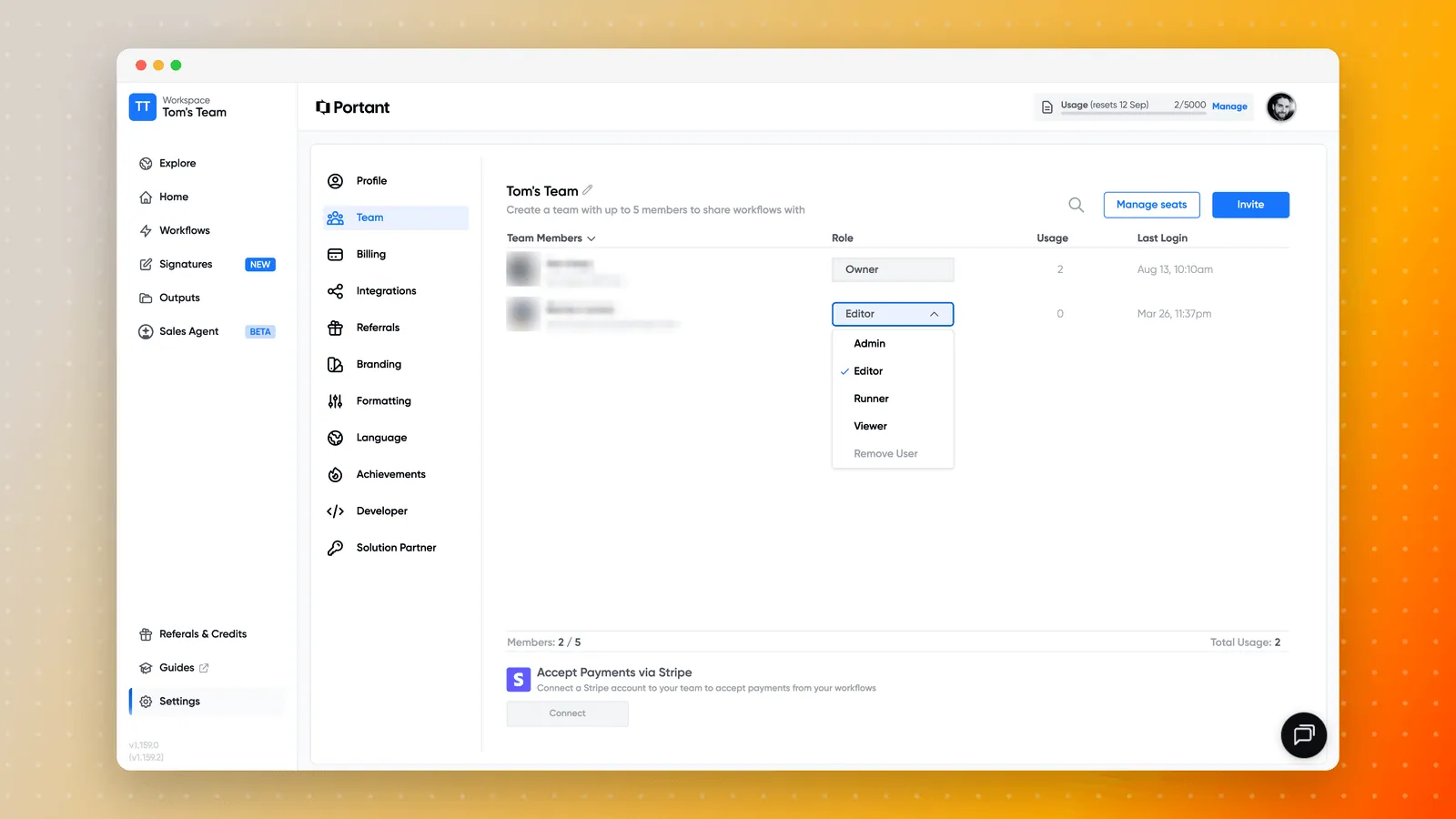
The Members count at the bottom of that table shows how many of your seats are in use, and each row shows that person's usage and last login. Both are useful when you are deciding whether a seat is still earning its place.
Give people the least access they need
If someone only needs to see outputs, the Viewer role covers that without giving them the ability to run or change anything. Matching roles to what people actually do keeps a team tidy and avoids surprises like a workflow being edited by someone who only meant to run it.
See Manage team permissions for what each role can do.